
Module 1: Introduction to Docker
🔹 What is Docker & Why Do We Need It?
Imagine you built an app that runs perfectly on your laptop. But when you send it to your friend or deploy it on a server, it breaks because of different environments, dependencies, or OS versions. This is the classic “it works on my machine” problem.
👉 Docker solves this by packaging your application and all its dependencies into containers.
A container is a lightweight, isolated environment that runs your app the same way everywhere.
No more dependency conflicts, OS mismatches, or version hell.
In short: Docker ensures consistency, portability, and scalability.
🔹 Virtual Machines vs Containers
Many beginners confuse VMs (Virtual Machines) with Containers. Let’s clear that up.
| Feature | Virtual Machines | Containers |
| OS | Each VM has its own full OS (heavy) | Containers share the host OS kernel (lightweight) |
| Size | GBs | MBs |
| Startup Time | Minutes | Seconds |
| Performance | More overhead | Near-native speed |
| Use Case | Full OS isolation | Application-level isolation |
👉 Think of VMs as entire houses (independent, heavy) and containers as apartments (lightweight, share infrastructure).
🔹 Key Docker Components
Before diving deeper, let’s understand the building blocks of Docker:
Docker Images
Read-only templates that define how a container should run.
Example:
nginx:latest,mysql:8.0.
Docker Containers
Running instances of images.
Example: Running
mysql:8.0with your DB.
Docker Volumes
Used to store persistent data outside the container’s lifecycle.
Example: Keeping your database files safe even if the container restarts.
Docker Networks
Allow communication between containers.
Example: Your Node.js app container talking to a MySQL container.
🔹 Docker Architecture
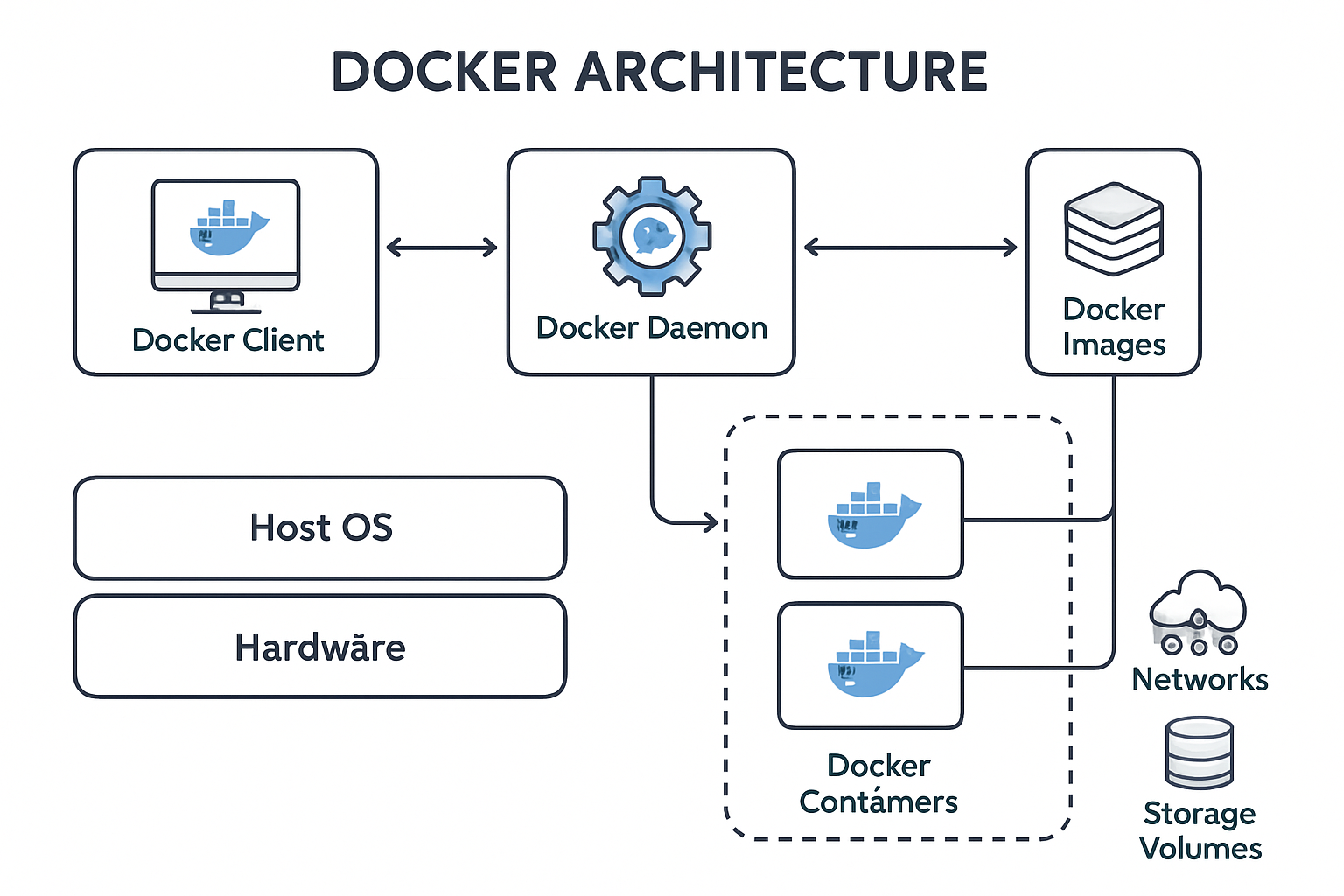
Now that we know the components, let’s see how they all fit together in Docker’s architecture.
Docker follows a client-server model with three main parts:
Docker Client – where users interact using CLI (
docker run), REST API, or GUI.Docker Host – contains the Docker Daemon, which manages containers, images, volumes, and networks.
Docker Registry – stores Docker images (e.g., Docker Hub).
🔗 Workflow Example
You run:
docker run nginxThe Docker Client sends this request to the Docker Daemon.
The Daemon checks if the
nginximage exists locally.- If not → it pulls from the Registry.
The Daemon then creates a container from that image.
The container runs in isolation but can communicate using networks and persist data with volumes.
👉 This architecture ensures Docker runs applications in a consistent, portable, and efficient way.
🔹 Installing Docker
Docker supports all major platforms. Here’s a quick guide:
✅ On Linux (Ubuntu/Debian)
sudo apt update
sudo apt install -y ca-certificates curl gnupg
sudo install -m 0755 -d /etc/apt/keyrings
curl -fsSL https://download.docker.com/linux/ubuntu/gpg | sudo gpg --dearmor -o /etc/apt/keyrings/docker.gpg
echo \
  "deb [arch=$(dpkg --print-architecture) signed-by=/etc/apt/keyrings/docker.gpg] https://download.docker.com/linux/ubuntu \
  $(lsb_release -cs) stable" | sudo tee /etc/apt/sources.list.d/docker.list > /dev/null
sudo apt update
sudo apt install -y docker-ce docker-ce-cli containerd.io
Verify installation:
docker --version
✅ On Windows / Mac
Install Docker Desktop from Docker’s official site.
After installation, open terminal (PowerShell/CLI) and type:
docker --version
🔹 Your First Container
Now that Docker is installed, let’s run our very first container! 🎉
docker run hello-world
🔍 What happens here?
Docker checks if the
hello-worldimage exists locally.If not, it downloads it from Docker Hub (public registry).
Runs the container, which prints a welcome message.
You should see output like:
Hello from Docker!
This message shows that your installation appears to be working correctly.
🎊 Congratulations — you just ran your first container!
📌 Recap
In this module, you learned:
✅ What Docker is and why we need it
✅ Difference between VMs and Containers
✅ Key Docker components (Images, Containers, Volumes, Networks)
✅ How to install Docker on Linux/Mac/Windows
✅ Running your very first container with hello-world